Database Maintenance
Various database maintenance functions can be performed on each of your TRUX database companies. Backup Manually or Automatically, Restore, Truncate Log, Reindex and Update Version.
Navigate To: Utility>Database Maintenance
Manual database backup is used to backup a database run on an as needed basis by manually defining the backup user and file name.
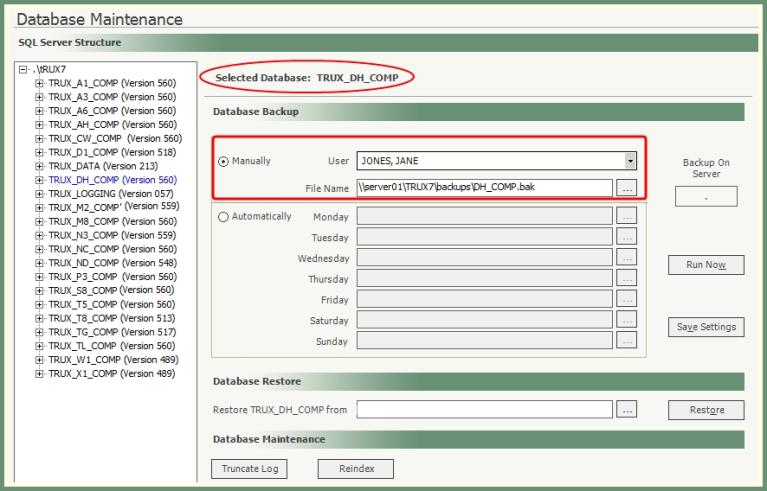
- From the database list on the left, select the database to backup. The selected database will display at the top of the screen.
- Your user name will populate the User field.
- Enter the location of where you'd like to have the backup file saved or click the More button to navigate to the location. Example: \\server01\TRUX7\backups\DH_comp.bak
Note: It is best to use a UNC path rather than a local drive mapping or a mapped drive. (Do not use a path that is a lettered path, i.e. C:\TRUX7\backups...
- Click Run Now.
Database Backup: Automatically
Automatic database backup is used to backup a database on a defined schedule by day(s) of the week. The backup will automatically run upon the first user login for the designated day.

- From the database list on the left, select the database to be automatically backed up. The selected database will display at the top of the screen.
- For each day of the week you would like to have an automatic backup generated, enter the backup location and the file name with a .bak extension in the days of the week fields.
- Click Save Settings.
Note: An automatic backup will take place for the selected database when the first user logs in on the days designated with an automatic backup.
Restore a database from the most recent back up.

- From the database list on the left, select the database to restore. The selected database will display at the top of the screen.
Note: The database selected will populate the Restore YourDatabase from title.
- Enter the location to retrieve the backed up database to be restored or click the More button to navigate to the location.
Note: If you are restoring from a Manual backup you have just performed, copy the same path you had in the File Name field and paste it into the Database Restore field.
- Click Restore.
Database Maintenance: Truncate Log
Performing Truncate Log on a database can reduce the size of the log file and free up space. Contact [email protected] with truncate log questions.
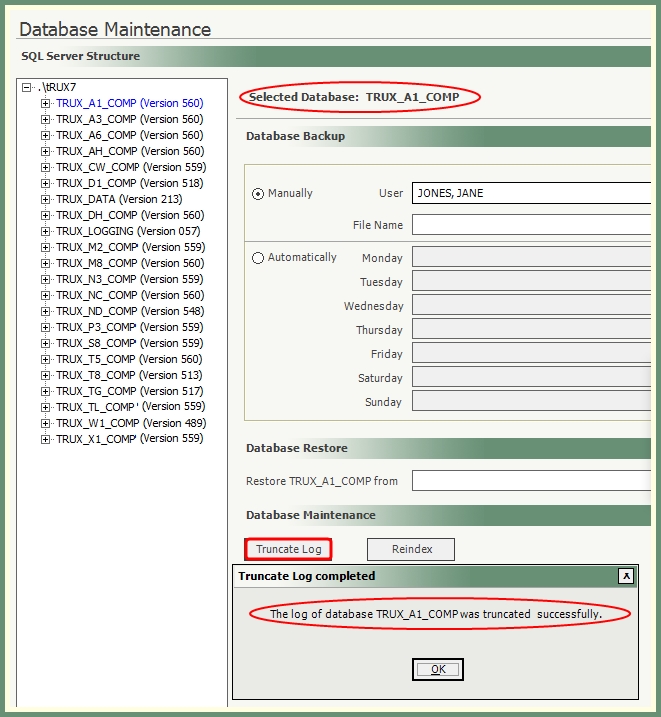
- From the database list on the left, select a database to truncate log. The selected database will display at the top of the screen.
- Click Truncate Log.
Reindexing a database is not a frequent maintenance on your database, however it may be necessary to improve performance. Contact [email protected] if you have Reindex questions.
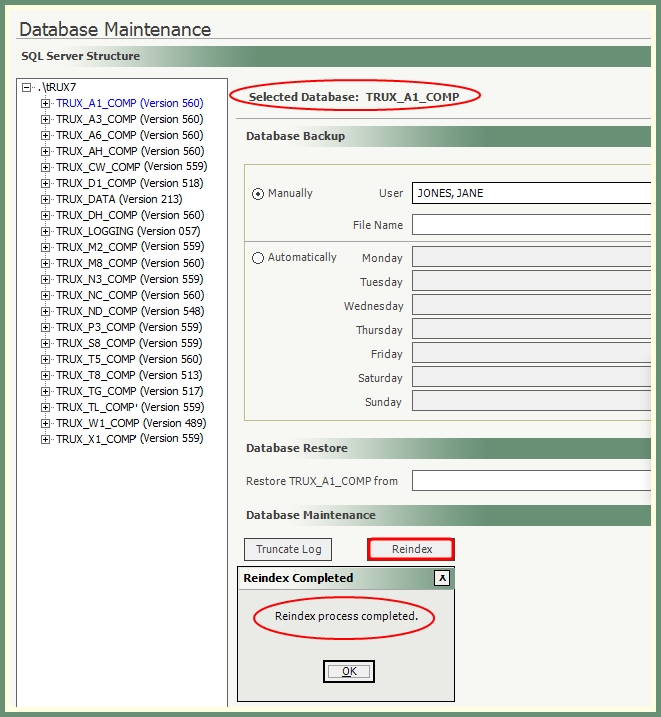
- From the database list on the left, select the database to reindex. The selected database will display at the top of the screen.
- Click Reindex.
Database Maintenance: Update Database
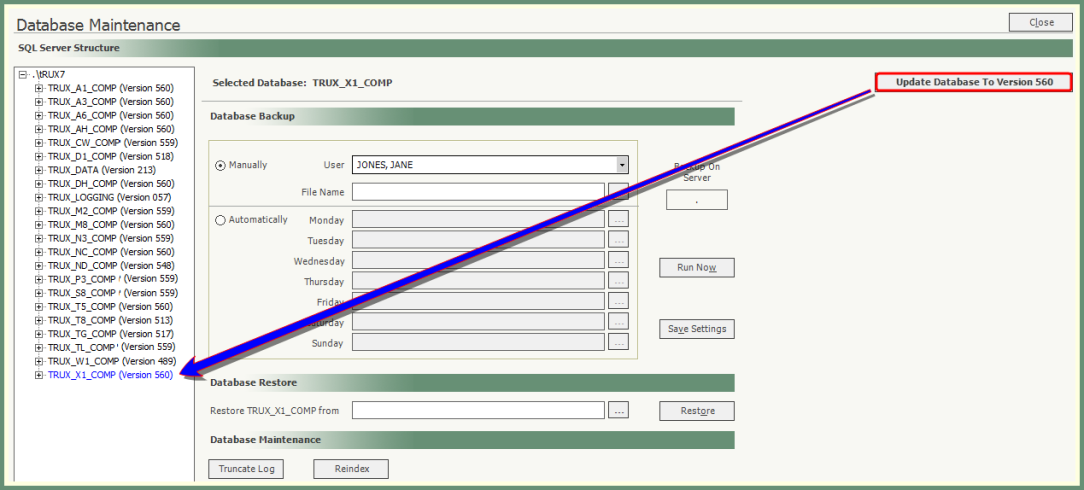
The version number available to your company databases will be indicated in the upper right corner of the screen. The current version number for each of your databases will be indicated to the right of each company in the list.
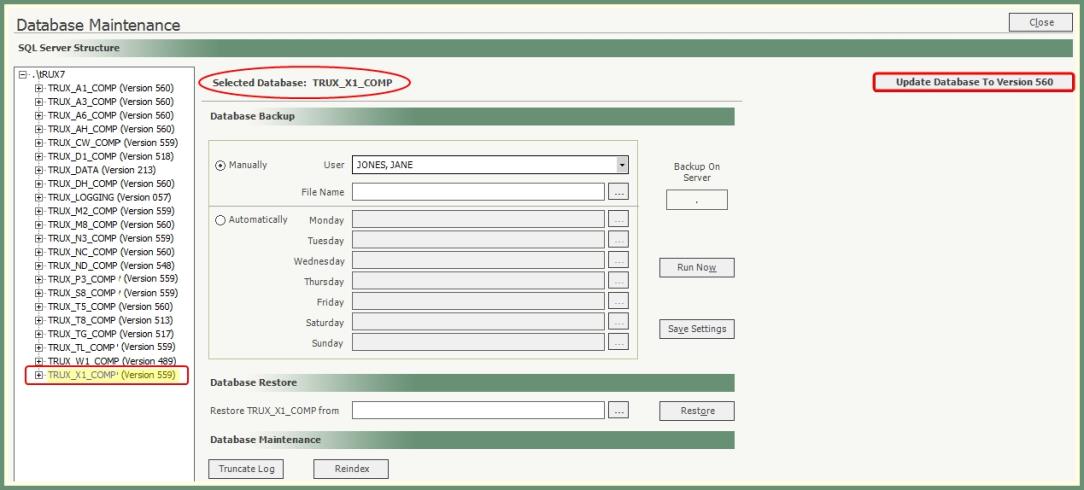
- From the database list on the left, select the database to update. The selected database will display at the top of the screen.
- Click Update Database To Version _ _ _.
The Version number will be updated for the selected database.